

NEAR AI Cloud: Embedded
Embed the Verification Center and supply your application's verification reports.
Add the Verification Center with an HTML <iframe> and plain JavaScript. Your application supplies verification reports; the viewer displays them through postMessage.
[!NOTE]
This page covers iframe communication. Your application runs verification and prepares reports in the format below. The viewer validates their structure without independently verifying their evidence.
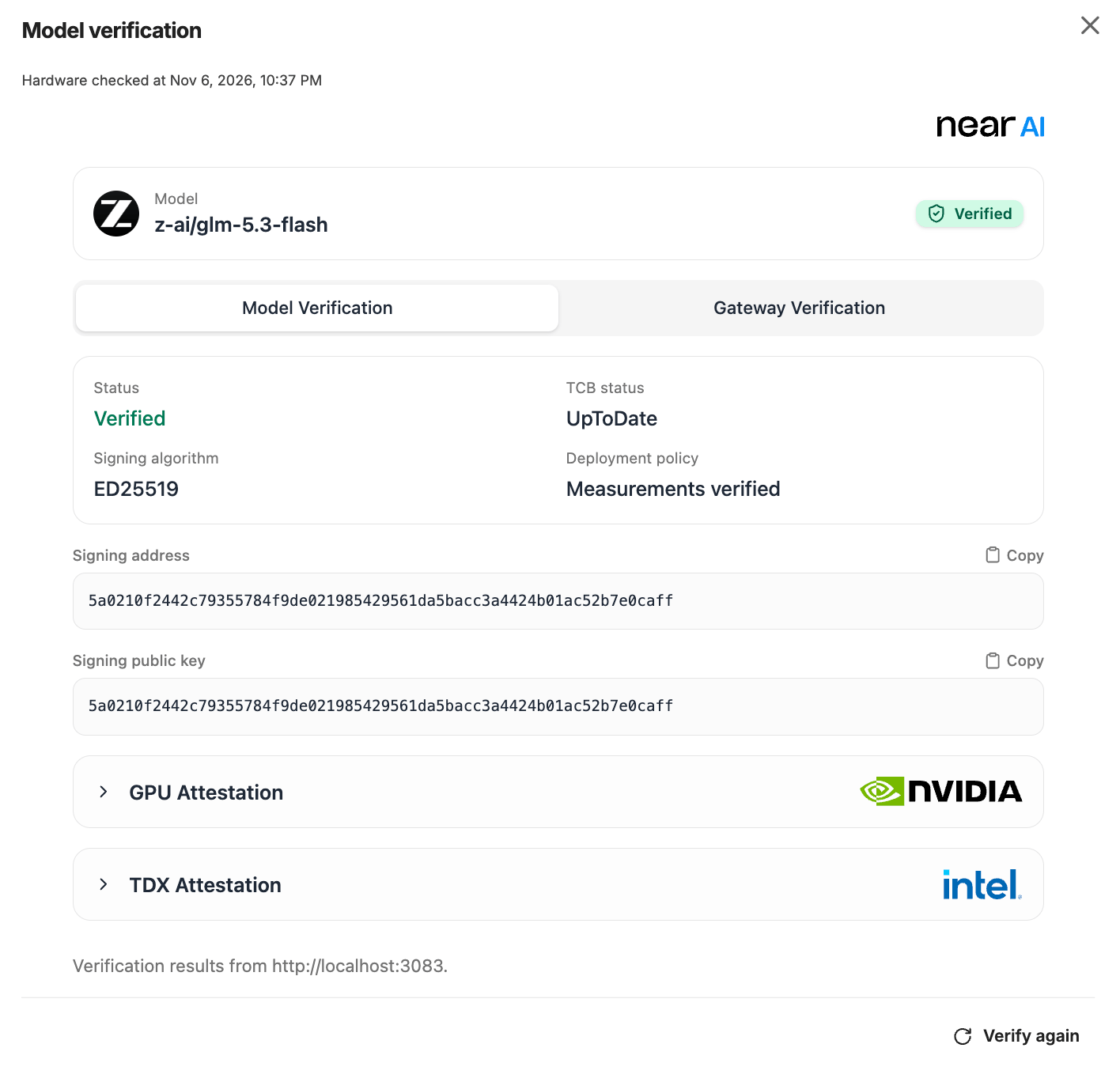
Example model verification view with Model and Gateway tabs, attestation details, and a Verify again action.
1. Add the iframe
Serve your application over HTTPS. Register the message listener before setting the iframe’s src.
<iframe
  id="verification"
  title="NEAR AI Verification Center"
  allow="clipboard-write"
  referrerpolicy="no-referrer"
  style="width: 100%; max-width: 720px; height: 80vh; border: 0"
></iframe>
2. Connect the viewer
Save this as verification.js. The connection code uses browser APIs and has no SDK or framework dependency.
export function showVerification(getReports) {
  const iframe = document.getElementById('verification');
  const viewer = new URL('https://cloud.near.ai/verify?canRequestReports=true');
  let requestId = '';

  async function receive(event) {
    if (
      event.origin !== viewer.origin ||
      event.source !== iframe.contentWindow
    ) return;

    const { type, version, requestId: id } = event.data ?? {};
    if (version !== 1 || typeof id !== 'string' || !id) return;
    if (![
      'NEAR_AI_VERIFICATION_CENTER_READY',
      'NEAR_AI_REQUEST_VERIFICATION_REPORT',
    ].includes(type)) return;

    requestId = id;
    let reports;
    try {
      reports = await getReports();
    } catch {
      console.error('The application could not prepare verification reports.');
      return;
    }
    if (requestId !== id) return;
    iframe.contentWindow?.postMessage(
      {
        type: 'NEAR_AI_VERIFICATION_REPORT',
        version: 1,
        requestId: id,
        reports,
      },
      viewer.origin,
    );
  }

  window.addEventListener('message', receive);
  iframe.src = viewer.href;

  return () => {
    requestId = '';
    window.removeEventListener('message', receive);
    iframe.removeAttribute('src');
  };
}
3. Supply your reports
Supply a callback that returns VerificationReport objects for your model, Gateway, or response, including unsuccessful verification results:
type GetReports = () => Promise<VerificationReport[]>;
After the iframe exists, pass your callback from your application module or a <script type="module">:
import { showVerification } from './verification.js';

// reports is your application's prepared VerificationReport[].
const disconnect = showVerification(async () => reports);
This example reuses your application's prepared reports. The connection calls the callback when the viewer is ready and whenever the user selects Verify again. To provide fresh results, run verification or retrieve updated reports from your application's verification service inside the callback.
Call disconnect() before removing the iframe or changing the verification target, then reconnect with the callback for the new target. Pending results from the previous connection are ignored.
Report types
Choose the report type for what your application verifies. Both use the shared types below. These declarations describe the payload; the JavaScript connection does not import them.
type VerificationReport = ResponseReport | AttestationReport;
[tab] Model / Gateway
Use this type for deployment attestation. Both model and Gateway reports use
kind: 'model';scopedistinguishes them. Themodelfield identifies the target model and is required for this report type, including Gateway-only reports.type AttestationReport = { schemaVersion: 1; kind: 'model'; model: string; scope: 'model' | 'gateway' | 'unknown'; status: 'verified' | 'partial' | 'failed' | 'unverifiable'; attestation?: AttestationSummary; error?: { code?: string; message: string }; };
[tab] Response
Use this type for a specific response. Its protocol value is
kind: 'response'.type ResponseReport = { schemaVersion: 1; kind: 'response'; completionId: string; model?: string; scope: 'model' | 'gateway' | 'unknown'; status: 'verified' | 'partial' | 'failed' | 'unverifiable'; signature?: CompletionSignature; attestation?: AttestationSummary; error?: { code?: string; message: string }; };Successful response reports require both
signatureandattestation, with matching signing identities. Model scope requires aprovider_teesignature; Gateway scope requires agatewaysignature.The viewer derives a model-signed response's model from its signed payload; any supplied
modelmust match. Successful Gateway-only results appear as Gateway verified in the viewer; they do not attest model execution.
[accordion] Shared signature and attestation types
import type {
  CompletionSignature, GatewayTlsBinding, RuntimeMeasurements, SigningIdentity,
} from '@nearai/inference-sdk';

type AttestationSummary = {
  signer: SigningIdentity;
  tcbStatus:
    | 'UpToDate' | 'SWHardeningNeeded' | 'ConfigurationNeeded'
    | 'ConfigurationAndSWHardeningNeeded' | 'OutOfDate'
    | 'OutOfDateConfigurationNeeded' | 'Revoked' | 'Unknown';
  advisoryIds: string[];
  deploymentProvenance: 'verified' | 'not_checked';
  deployment: { runtimeMeasurements: RuntimeMeasurements };
  gpuEvidence?: 'verified' | 'not_provided';
  signingPublicKey?: string;
  tlsBinding?: GatewayTlsBinding;
};
- Successful reports require
attestation, a knownscope, and noerror. Model scope requiresgpuEvidence; Gateway scope requirestlsBindingandstatus: "partial". Only model scope can usestatus: "verified". - Use
failedwhen verification rejects a signature or evidence, andunverifiablewhen it cannot complete. Include a safeerror.message; usescope: "unknown"if verification could not establish the scope.
Return a nonempty array with at most 1,000 reports and 1 MiB of projected UTF-8 JSON. All reports must refer to the same model, and all response reports to the same completion.
Select report fields explicitly before sending them. A type annotation or as VerificationReport does not remove runtime fields. Keep API keys, chat content, raw SDK results, raw exceptions, and deployment configuration out of reports.
For SDK verification, see the JavaScript SDK guide. Convert SDK verification results to this format in your application. For response reports, call verifyResponse() on the original SDK client that made the request, after any response stream is fully consumed.
Customize the viewer
Add these optional parameters to the viewer URL in verification.js:
| Parameter | Default | Meaning |
|---|---|---|
darkMode |
false |
Use a dark viewer. |
showHeader |
true |
Set to false to hide the page header. |
canRequestReports |
false |
Enable Verify again, which calls getReports again. |
For example: https://cloud.near.ai/verify?darkMode=true&showHeader=false&canRequestReports=true.
Troubleshooting
| Symptom | What to check |
|---|---|
| Blank viewer | Use HTTPS. Allow https://cloud.near.ai in CSP frame-src. If sandboxed, include allow-scripts allow-same-origin. |
| No report received | Ensure getReports() resolves with a nonempty report array. Check the browser console for callback errors. |
| Invalid report | Check the versions, required fields, report limits, and matching signer identities. Keep the origin, source, and request-ID checks in the example. |
| SDK cannot find the completion | Reuse the original SDK client and finish consuming the response stream before preparing reports. |
Reference
- JavaScript SDK: create completions and verify responses.
- Verification Center: inspect a model or response in the standalone viewer.
- Verification policy: choose the checks your application requires.